12 Kasım 2019 Salı

Adobe After Effects window WAY off screen

If you are also having this problem , which made me crazy, here is the solution.

First somehow find a way to scale the window (which looks like you can only scale vertical, and it doesnt help to see the top edge of the window).

Click and hold OPTION + SHIFT and Scale it like you do it vertical, but it will scale as all, so you can easily scale down to see whole window.


Hope this helps.
All the best!!

11 Mayıs 2017 Perşembe

DOWNLOADING ALL LINKS

Tuesday, 3 March 2015


How To Download All Full Sized Images From Google Image Search Without Any Software - 2 Easy Steps only

Hello Friend,

This blog post is to show you how easily you can download all full sized images from google image search without any software, although there are software's available out there but they are not for free and you may have to buy them for use, BUT today we are gonna use our own method.  So we won't to pay for such simple Tasks.

Here we go it includes only two easy step and you'll be done.

Recommended Posts : How to download all full sized images from Pinterest

Steps :


  1.       Extract all the image urls from google search results.
  2.       Copy these all url's DownThemAll using your favorite DownLoadManager.                      (I suggest to use DownThemAll (add-on) if you use firefox)


Step-1:Extracting Link 

Don't worry you don't have to scan each image URL from page ,Your browser is gonna do that  for yew. Here I've wrote a pretty simply JavaScript  snippet  for that purpose

1: Copy the code from here :

var cont=document.getElementsByTagName("body")[0]; var imgs=document.getElementsByTagName("a"); var i=0;var divv= document.createElement("div"); var aray=new Array();var j=-1; while(++i<imgs.length){ if(imgs[i].href.indexOf("/imgres?imgurl=http")>0){ divv.appendChild(document.createElement("br")); aray[++j]=decodeURIComponent(imgs[i].href).split(/=|%|&/)[1].split("?imgref")[0]; divv.appendChild(document.createTextNode(aray[j])); } } cont.insertBefore(divv,cont.childNodes[0]);


2: Now open the Google images search tab.
Note: Before continuing make it sure to load all thumbnails by scrolling the page down to bottom other wise only first few image URL will be extracted

3: Press ctrl+shift+i combination. A pop up window will open click on the tab named console and paste
   the code there using hotkey ctrl+v and press Enter;


Note: If it's first time you've done that the pop up window may appears at the right side of screen in vertical position, click on the rectangular icon located in between the cross and gear icon it will bring the pop up window to the bottom of page

Extraction is Done: as soon as you press enter a list containing all the image url's will be
displayed at the top of the page This means Extraction is done completely


Step-2:Downloading Images.

Final step is to download the images which is the easiest part.You need a download manager for this purpose i recommend using IDM since its one of the best download managers available 1- Copy the extracted Urls and switch to IDM.
2- Click Task located at top left corner3- Select "Add batch download from clipboard".
4- Press Check all and click on ok button
5- Check Start Que Processing and again press ok


All images will be downloaded to the directory you've selected

11 comments:

FreeEndlessInfo.com said...
Not working. it just shows http and https no link. Did google changed the image search code.Please check it.
kaleem ullah said...
hello friend, thank you for the feedback the script is fixed now.
Kirankumar Devaraja said...
hi Kaleem , can u please give me the Script
https://www.google.ie/search?q=blouse+designs+images&espv=2&biw=1920&bih=925&tbm=isch&tbo=u&source=univ&sa=X&ved=0ahUKEwjts7qBw-jPAhULIMAKHRmLD4AQsAQIGg

kaleem ullah said...
Link extraction script is already given above, what script are you talking about?
jeriel bright said...
Or you can click on the picture and drag it to any part of your library.

Tushar said...
Thank you so much it helped :)
It worked absolutely fine.
Semoga Bermanfaat said...
work
thanks Mr...
Gökhan KARAGÖZ said...
This is awesome! Thanks lots of.
Plus, can you explain the code? I would like to learn algorithm about that.
kaleem ullah said...
This code just scrapes all the images in the webpage and lists the source property of images. you may check this out it's similar
https://32hertz.blogspot.com/2015/06/how-to-download-all-pictures-from.html

Bubu Daba said...
You can save it as bookmark, just type "javascript:" and the code when editing the url field
Hao Tang said...
Thanks, you code works like a charm to download full sized images. Do you mind sharing the script that could download all thumbnails instead of full sized images from google image search?


10 Nisan 2015 Cuma

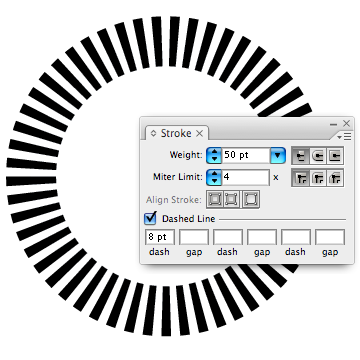
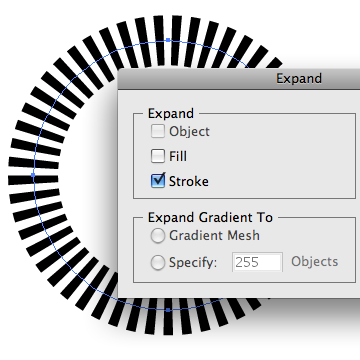
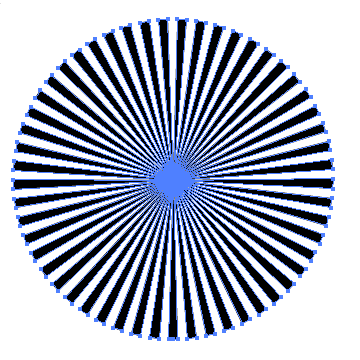
How to Create Vector Sun


This tuttorial is from
http://www.webdesign.org/vector-graphics/adobe-illustrator/how-to-create-vector-sun-rays.18455.html


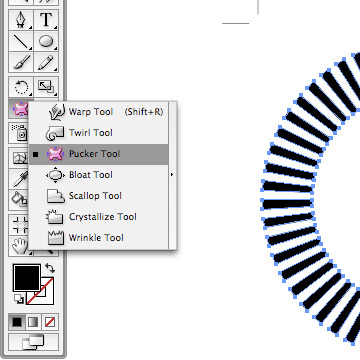
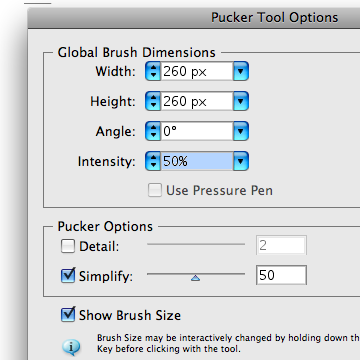
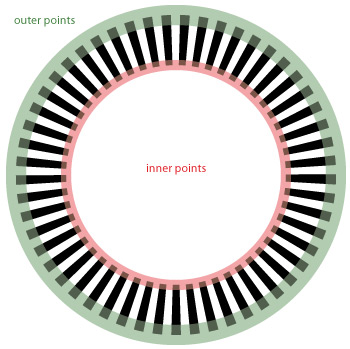
Before using this tool, double click on the pucker icon and a new window will appear. From the Pucker tool Options, set the height and width to 260px, a slightly smaller circle than our circle object which is 270px, uncheck the details options and click OK.
If you want to interactively change the radius of the circle, press Shift + Alt then Click + Hold your mouse button, make sure that the radius of the pucker tool will only affect the inner points.

press and hold the left mouse button.


4 Nisan 2015 Cumartesi

Important Illustrator Tips

MASTER THE NUDGE
This has nothing to do with your spouse (or your mouse for that matter). In Illustrator, using the arrow keys on your keyboard (up, down, left, right) to move your objects in small increments is called “nudging”. The default increment amount is 1pt (.0139 inches), but you can choose a value more relevant to your task at hand. For example, if you’re working in scale, use a number that is easily divisible. Or use specific amounts, like .0625 inches, so you can tap the arrow key 4 times in quick succession and know you’ve moved the object exactly .25 inch. I’ll often adjust the increment value several times a day, as needed.  


Cmd-K [Ctrl-K] Opens the preferences panel and highlights the keyboard increment field. Just enter a numeric value and hit the Enter key to change it.
Arrow: Nudges selected artwork the amount specified in the Preferences dialog.
Shift-Arrow: Nudges selected artwork 10x the amount specified in the Preferences dialog.
Option-Arrow [Alt-Arrow]: Nudges a copy of the selected artwork the amount specified in the Preferences dialog.
Shift-Option-Arrow [Shift-Alt-Arrow]: Nudges a copy of the selected artwork 10x the amount specified in the Preferences dialog.


ALIGN WITH INTELLIGENCE
With Illustrator CS4, you can snap an object’s boundaries to other objects or guides (previous versions only allowed you to snap your cursor to other objects or guides, requiring you to grab objects by their edges or anchor points). To get this to work, however, you have to have Smart Guides turned on—a feature that many find annoying or too “in your face”. Rather than get rid of it, learn to control it. First, open the Smart Guides preferences panel and uncheck all boxes except for Alignment Guides, then press OK. Now you can use a keyboard shortcut to turn Smart Guides on and off as you need it.

Cmd-U [Ctrl-U]: Toggles Smart Guide behavior on and off.


SELECT FASTER
We probably make use of the Selection tools in Illustrator more than anything else, so it’s important to get familiar with NOT constantly switching between them. Instead, learn to use the shortcuts to make them all behave as one cohesive unit.

V: Selection tool (Solid arrow) — the inverted “V” looks like an arrow.
A: Direct Selection tool (Hollow arrow) — the “A” looks like an arrow with a hollow center.

Rather than constantly switch between the two arrow tools, most power users use the Direct Selection tool most often and use these shortcuts:

Cmd [Ctrl]: Temporarily toggles to Selection tool.
Option [Alt]: Temporarily toggles to Group Selection tool.

On the subject of making selections it can often be easier to select art without using tools at all:

Cmd-A [Ctrl-A]: Select all.
Shift-Cmd-A [Shift-Ctrl-A]: Deselect all.

CHANGE OBJECT ATTRIBUTES
How many times do you apply a color only to realize you adjusted the stroke when you meant the fill? How many times do you just want to get an object back to a white fill and a black stroke? Don’t answer—just learn the power moves:

D: Resets an object’s appearance to white fill, 1pt black stroke.
X: Toggles the focus between Fill and Stroke.
Shift-X: Swaps the colors of an object’s fill and stroke.
/ : Applies the None attribute.
Cmd-/ [Ctrl-/]: Applies a new fill (via the Appearance panel).
Shift-Cmd-/ [Shift-Ctrl-/]: Applies a new stroke (via the Appearance panel).

ADJUST STACKING ORDER
I cringe every time I see someone move their mouse up to the Object menu every time they want to bring an object to the front or send it to the back. Due to the stacking nature of vector graphics, these power moves are essential. While there are four possible settings here, the most important ones to remember are Bring to Front and Send to Back.

Shift-Cmd-] [Shift-Ctrl-]]: Bring to front.
Shift-Cmd-[ [Shift-Ctrl-[]: Send to back.
Cmd-] [Ctrl-]]: Bring forward.
Cmd-[ [Ctrl-[]: Send backward.

LOCK AND LOAD (AND HIDE)
Complex artwork—especially those laden with multiple masks—can make for difficult selections. While the new isolation behavior in Illustrator CS4, which allows you to double click on any object to temporarily lock it and bring it to the top of the stacking order, is brilliant, there are still many times when locking or hiding elements can be useful, especially when spending a lot of time focusing on smaller parts of a larger overall illustration.

Cmd-2 [Ctrl-2]: Lock selected object(s).
Cmd-Option-2 [Ctrl-Alt-2]: Unlock all.
Cmd-3 [Ctrl-3]: Hide selected object(s).
Cmd-Option-3 [Ctrl-Alt-3]: Show all.


Hit Shift+Option+Command+3 to hide everything that's not selected

Hit Shift+Option+Command+2 to lock everything that's not selected


Since there’s no way to unlock a specific object, most pros will Unlock all, Shift-click on the object they want unlocked (which deselects it), and then Lock in quick succession. Same applies for Hide/Show. 


YUMMY PASTE
Paste was delicious when you were younger, and just because you’ve grown up, it doesn’t mean you can’t enjoy it now. The Paste command in Illustrator places art in the center of your screen, but you can also paste objects in place — either in front or in back. For those who were familiar with FreeHand, Paste in Front is the same as the feature once known as Clone. Paste in Front and Paste in Back are also helpful when you want pasted objects to be placed within groups or masks.

Cmd-V [Ctrl-V]: Paste.
Cmd-F [Ctrl-F]: Paste in front of the copied object.
Cmd-B [Ctrl-B]: Paste behind the copied object. 


1. Everyone knows the Tracking/Kerning shortcuts Option + Arrows Left or Right. Add Command to that combo to make it really powerful.

2. You may have gone to far with your Tracking or Kerning. You can zero it in one click with Option + Command + Q.

3. To get the Character Panel open one usually clicks Command + T. But if you use Shift + Option + Command + F, you open the Character Panel and hi-lights the fonts name. Works too if the panel is open.

4. Changing the size of type with Shift + Command + Comma or Period, can be made ten times as powerful by adding Options to that combo.  


Fit in window (Clover-0) is hardwired in my muscle memory.  

(while selecting text) cmd + shift + . increases font size by 2pt
(while selecting text) cmd + alt + shift + . increases font size by 10pt

(while selecting text) cmd + shift + , decreases font size by 2pt
(while selecting text) cmd + alt + shift + , decreases font size by 10pt

(while selecting a text line) alt + up arrow reduces leading distance
(while selecting a text line) alt + down arrow reduces leading distance 

26 Şubat 2015 Perşembe

Color Finesse Reserializing

 To force Color Finesse to ask for a registration code again on a Windows system, perform the following steps:
  1. In the Windows Start menu, choose "Run..."
  2. In the "Open:" text box, enter "regedit" and click OK.
  3. You may get a prompt about needing permission to continue. If you do, click Continue.
  4. The regedit application will open and you'll see a list of items on the left side of the window.
  5. If not already open, twirl open the item labeled "Computer"
  6. Twirl open the item labeled "HKEY_CURRENT_USER"
  7. Under that, locate and twirl open the item labeled "Software"
  8. Under that, locate and twirl open the item labeled "Synthetic Aperture"
  9. You should now see a item labeled "Color Finesse 3". There may be multiple versions of Color Finesse installed, so be sure you locate the correct item for the version you want to re-serialize.
  10. Right-click on the "Color Finesse 3" item. You should now see something similar to:

  • Choose Delete from the popup menu.
  • You'll be asked to confirm the deletion. Click Yes.
  • Close the regedit window.
  • Restart After Effects.
  • Open a project, select a layer and apply SA Color Finesse 3 to the layer.
  • You'll be once again prompted for the Color Finesse 3 registration code. Enter the correct one and you'll be up and running with no pink lines


  • Windows 7 Tips #2

    Preview your files

    You can open the preview pane in a window by pressing Alt+P. Items such as photos and PDF files will be previewed in this area when you click them.

    Clean up Live Essentials

     If this causes problems later, or you just decide you don't need it, then Choice Guard may be removed by clicking Start, typing :
    msiexec /x {F0E12BBA-AD66-4022-A453-A1C8A0C4D570} 
    and pressing [Enter].

    Recover locked-up apps 

    When the lockup occurs, click Start, type RESMON and click the RESMON.EXE link to launch the Resource Monitor. 

    Find your frozen process in the CPU pane (it should be highlighted in red), right-click it and select Analyze Wait Chain.

    If you see at least two processes in the list, then the lowest, at the end of the tree, is the one holding up your program. If it's not a vital Windows component, or anything else critical, then save any work in other open applications, check the box next to this process, click End Process, and your locked-up program will often spring back to life.


    Fault-Tolerant Help

    Windows 7 includes a new feature called the Fault Tolerant Help (FTH), a clever technology that looks out for unstable processes, detects those that may be crashing due to memory issues, and applies several real-time fixes to try and help. If these work, that's fine - if not, the fixes will be undone and they won't be applied to that process again.
    While this is very good in theory, it can leave you confused as some applications crash, then start working (sometimes) for no apparent reason. So if you'd like to check if the FTH is running on your PC, launch REGEDIT, and go to HKEY_LOCAL_MACHINE\Software\Microsoft\FTH - any program currently being protected by the FTH will be listed in the State key.
    Experienced users may also try tweaking the FTH settings to catch more problems, and perhaps improve system stability. A post on Microsoft's Ask The Performance Team blog (bit.ly/d1JStu) explains what the various FTH Registry keys mean.


    18 Şubat 2015 Çarşamba

    Preserve Underlying Transparencies

    Right next to the [blending] MODE option of any layer is a little box simply labeled “T”. This is the “Preserve Underlying Transparencies” box. Click it to activate, and After Effects will take the alpha channel (or “transparency”) of the layer directly beneath and it apply it to the current layer.


    For more info
    http://sparksight.com/blog/quick-tip-for-motion-graphics-artists/